
Microsoft Publisher is a versatile tool that allows users to create professional designs for brochures, newsletters, and other publications. One of the common tasks in Publisher involves working with tables. Tables are great for organizing content, but sometimes, you might want to turn off table lines on Publisher to create a cleaner, more polished look. This guide will walk you through the steps to remove table lines while maintaining the structure of your document.
Why Turn Off Table Lines in Publisher?
In many design scenarios, visible table lines can clutter your layout or detract from the overall design aesthetic. Removing these lines allows your content to stand out and ensures that your document looks neat and professional. Whether you’re creating a newsletter, flyer, or brochure, understanding how to turn off table lines on Publisher can significantly enhance your design.
Step-by-Step Guide to Turn Off Table Lines on Publisher
Follow these steps to remove table lines in Publisher:
1. Open Your Document
The first step is to open the document that contains the table you want to edit. Navigate to the specific page with the table and ensure it is selected.
2. Select the Table
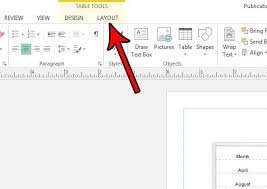
Click anywhere within the table to activate the table editing options. You’ll notice a set of tools appear in the ribbon under the “Table Tools” or “Table Design” tab.
3. Access the Border Options
To turn off table lines on Publisher, navigate to the “Borders” or “Borders and Shading” option within the Table Tools section. This menu allows you to customize how the table borders appear or disappear.
4. Remove the Table Lines
- Select the entire table or specific cells where you want the lines removed.
- In the Borders menu, choose the option to set the border style to “No Border” or turn off the borders entirely.
- You can also use the “Line Style” dropdown to change the appearance of the table lines, including making them invisible.
Also read https://deeptechy.com/2025/01/23/grace-mak-william-and-mary-a-journey-of-excellence/
Additional Tips for Working Without Table Lines
When you turn off table lines on Publisher, you can still work with the table structure without visible borders. Here are some tips to keep your document organized:
1. Use Shading for Clarity
Instead of relying on lines, consider adding background shading to alternate rows or columns. This helps distinguish data without needing borders.
2. Align Text Properly
Ensure that your text is well-aligned within each cell. Proper alignment will make your content easy to read even without visible lines.
3. Preview Your Document
Before finalizing your design, preview the document to ensure it looks clean and professional. Pay attention to how the table integrates with other design elements.
Benefits of Turning Off Table Lines
Understanding how to turn off table lines on Publisher offers several benefits for your document design:
- Improved Aesthetic Appeal: Removing table lines creates a minimalist, modern design.
- Professional Presentation: Documents without unnecessary lines often appear more polished and professional.
- Enhanced Readability: Without lines, the focus remains on the content rather than the table structure.
Common Issues When Turning Off Table Lines
While removing table lines can elevate your design, you may encounter a few challenges. Here’s how to address them:
1. Difficulty in Editing Tables
Without visible lines, it can sometimes be harder to edit the table structure. To overcome this, you can temporarily re-enable the borders during editing and remove them once the changes are complete.
2. Misalignment of Content
Ensure that your text, images, or other elements within the table are properly aligned. Using tools like “Center Align” or “Distribute Columns” can help maintain balance.
When to Use Tables Without Lines
There are specific scenarios where removing table lines is especially useful. Some examples include:
- Designing Brochures or Flyers: Tables without lines can integrate seamlessly into the overall design.
- Creating Price Lists: Without visible lines, price lists can appear more modern and visually appealing.
- Building Custom Layouts: For unique layouts, turning off table lines allows greater flexibility in design.
Conclusion
Mastering the ability to turn off table lines on Publisher is an essential skill for creating professional and visually appealing designs. By removing unnecessary lines, you can enhance the overall look of your document while maintaining its structure. Whether you’re working on a marketing piece or a personal project, this simple technique ensures your content remains the center of attention.
Try applying these steps in your next Publisher project to see the difference it makes in your designs!


