
Are you getting interrupted by the technical glitches? I know it is very annoying, especially when you face it while using QuickBooks software. QuickBooks helps users manage their finance-related tasks, including expenses, payroll, etc.
If you use the software often, you must have experienced errors.
Among the common ones come QuickBooks error 6129. Let’s discuss its causes and fixes in detail.
What Is QuickBooks Error 6129?
QuickBooks Error 6129 occurs when you try to create a new QuickBooks company file or open an existing one. This error is often associated with issues related to database connection verification. It may be caused by a conflict between the database server and the QuickBooks Database Sarver Manager or due to insufficient permissions, network issues, or corrupted company files.
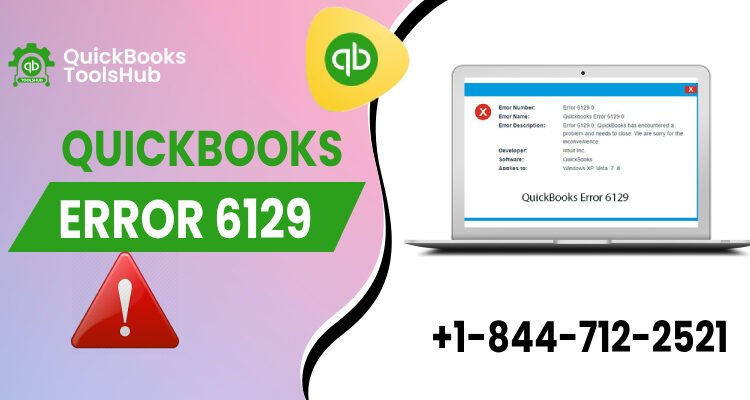
When the error occurs, it says ‘Error 6129,0: QuickBooks pro has encountered a problem and needs to close. We are sorry for the inconvenience.
Let’s explore the signs and symptoms of the error in detail:
Reasons Behind QuickBooks Error 6129?
Out of many possible reasons, the common ones include:
- This error can be because your system has been frozen for a few seconds.
- If you are running the same program that leads to frequent system crashes, it can also become the reason behind the 6129 error.
- If your active Windows crashes, it can also be the reason behind error 6129.
Methods To Fix QuickBooks Error 6129
Method 1: Update QuickBooks
Ensure that you are using the latest version of QuickBooks. Intuit regularly releases updates that include bug fixes and improvements. Updating QuickBooks may resolve Error 6129.
Method 2: Restart The Computer
Sometimes, a simple computer restart can resolve temporary issues and errors.
Method 3: Use QB File Doctor
QuickBooks File Doctor is a diagnostic tool provided by Intuit to fix common QuickBooks errors, including Error 6129. Download and run the QuickBooks File Doctor to scan and repair any issues with your company file.
Method 4: Rename the.ND and .TLG files
QuickBooks creates Network Data (.ND) and Transaction Log (.TLG) files that can become corrupted. Renaming these files can force QuickBooks to create new ones. Follow these steps:
- Navigate to the folder where your company file is located.
- Locate the files with the same name as your company file but with extensions.ND and . TLG.
- Rename these files by adding “.old” to the extensions (e.g., companyfile.qbw.nd.old, companyfile.qbw.tlg.old).
- Try to open QuickBooks again.
Method 5: Use the QuickBooks Database Server Manager:
If you use QuickBooks in a multi-user environment, run the QuickBooks Database Server Manager on the server where the company file is stored. This tool can help resolve issues related to multi-user access.
Method 6: Adjust Firewall Settings
Ensure your firewall is not blocking QuickBooks from accessing the necessary ports. You may need to configure your firewall settings to allow QuickBooks through.
Method 7: Check The Host Settings
If you use QuickBooks in a multi-user environment, ensure that only one computer is set up as the host. Hosting should be turned off on all other computers.
Method 8: Create A New Windows User
Create a new Windows user with administrative rights, log in with the new user credentials, and try to open QuickBooks. Sometimes, user-specific issues can cause Error 6129.
Method 9: Reinstall QB Database Server Manager
Uninstall and then reinstall the QuickBooks Database Server Manager. This can resolve issues with the Database Server Manager that may contribute to Error 6129.
Method 10: Contact QB Support
If none of the above solutions work, contacting QuickBooks Support for assistance may be necessary. They can provide guidance specific to your situation.
Pro Tip: Before making significant changes or attempting more advanced troubleshooting, creating a backup of your QuickBooks company file is advisable to avoid data loss. If you’re unsure about any steps, consider seeking the assistance of a qualified IT professional or contacting QuickBooks Support for guidance tailored to your situation.
Wrap Up!
This article discusses QuickBooks error 6129 opening file from the server. This error is often associated with issues related to database connection verification.
There can be many other reasons behind this error occurrence. A few of them are mentioned above.
How to fix QuickBooks error 6129? This error can be resolved using any of the 10 methods explained above. If none works for you, you can seek help from customer support.
If you’ve more questions related to QuickBooks error 6129, refer to the questions given below:
Frequently Asked Questions
How do I fix error 6129 in QuickBooks?
You can fix this error by following any of the 10 methods given above.
Why does QuickBooks error code 6129 0 occurs?
It occurs due to the issues related to database connection verification.
What are QuickBooks error codes?
The error codes are the commonly occurring errors that everyday QuickBooks users encounter.


